Fudov Smart + iiko: How to Connect
To connect Fudov Smart analytical reports to the iiko system, follow the steps below.
Step 1. Fill in the onboarding form
-
Briefly describe your business: share your website, countries and cities where you operate, and how many locations (departments) you plan to connect.
-
Specify which order types you have: in‑restaurant orders, courier delivery, pickup.
-
Choose a short account name for your company in English. This name will be used to sign in to Fudov services.
Requirements:
- short (one word or a short phrase without spaces);
- Latin characters only;
- clear and understandable for your staff.
-
Prepare an up‑to‑date list of locations to be connected (departments) including the location name and full postal address (city, street, building, unit, etc.). The name will be used in report labels, and full addresses are needed to show locations on the map, calculate distance, and so on.
-
If you do not mind sharing, let us know how you heard about us.
Send the data to Fudov support
After completing Step 1, send the data to Fudov support:
Client onboarding form for connecting Fudov services:

1. The project is called "Fast Rolls". We operate in Russia (Orel), Belarus (Grodno), and Kazakhstan (Shemonaiha).

2. We have all order types: in‑restaurant orders, courier delivery, pickup.

3. Account name: fastrolls

4. Location names and addresses:
- "Rolls on Lenina", address: Orel, Lenina St., 1
- "Pizza on Pushkina", address: Grodno, Pushkina St., 2
- "Pan‑Asian on Turgeneva", address: Shemonaiha, Turgeneva St., 3

5. We heard about you from colleagues.
Step 2. Create a Fudov user in the iiko back office
Fudov services will connect to your iiko server via a special interface — iikoServer API. To do this, create a dedicated user in the iiko back office.
-
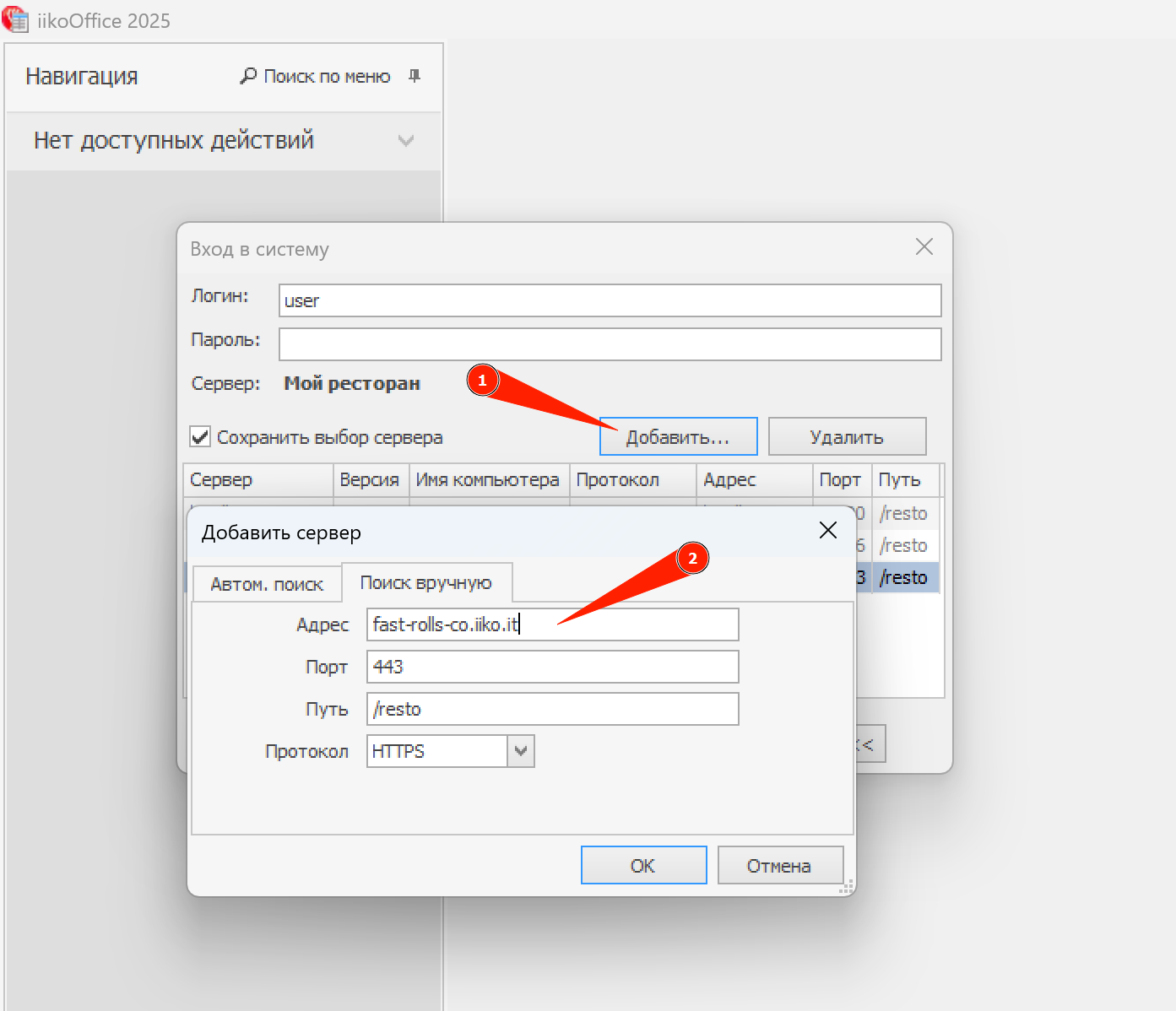
Sign in to the iiko back office (iikoOffice). Save the server address — we will need it to connect.
If you have multiple locations (departments)
If several locations are combined in a single iiko account and you use iikoChain, we will need the iikoChain server address specifically.
-
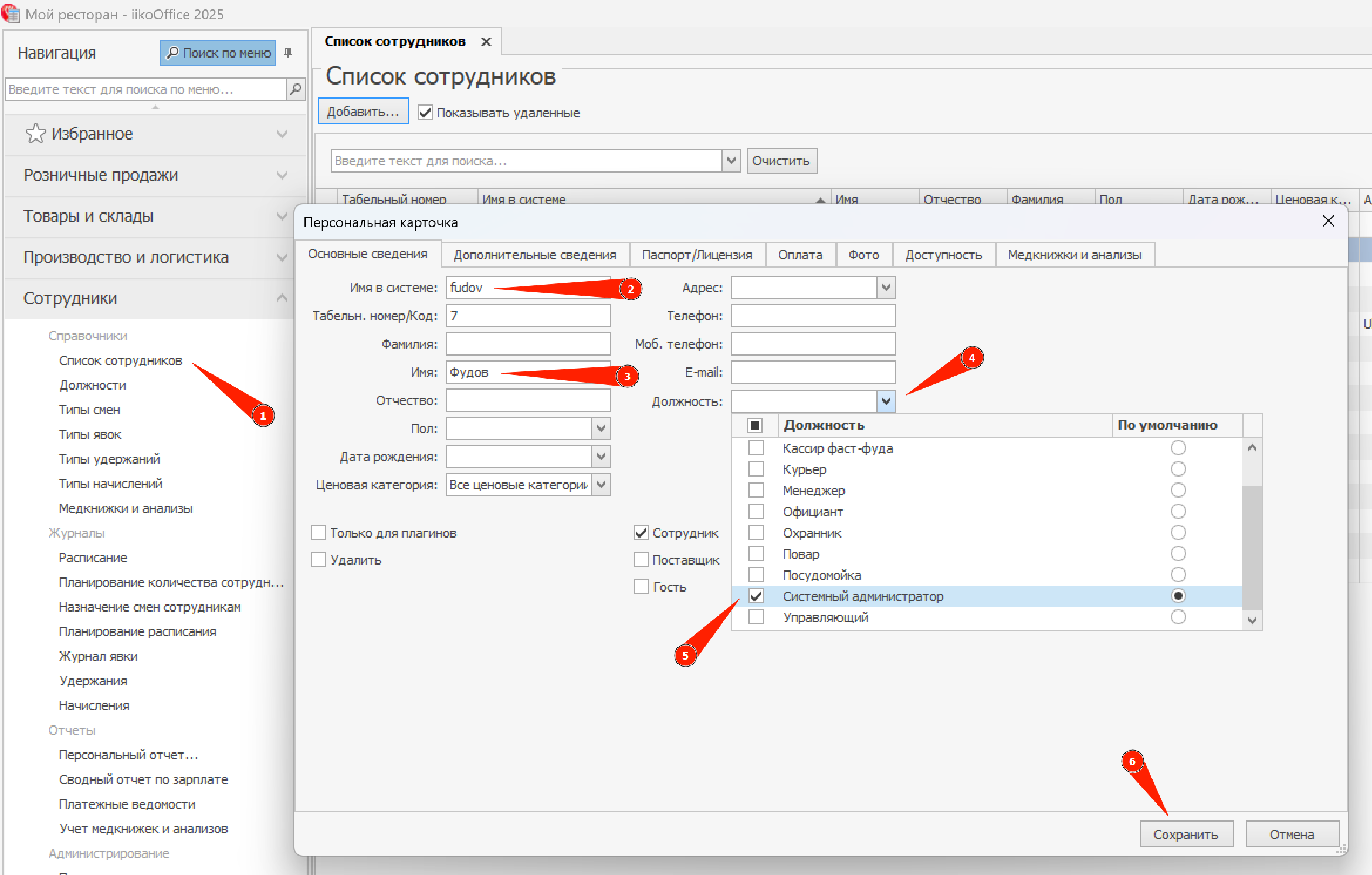
Open the iiko back office (iikoOffice), in the left menu go to Employees → Employees list and click Add.
-
For the new employee, set the System name (lowercase):
fudovName (capitalized):
Fudov -
Set Position →
System administrator.
If you do not have aSystem administratorposition, assign any other position and then grant theFudovuser the following administrative permissions:B_EN — Edit item master data B_RPT — View reports B_CASR — View sales reports B_PER — Access to the "Employees" section B_VN — View item master data B_VOTR — View OLAP report by transactionsImportant
Fudov services do not change any data in iiko (they do not create, edit, or delete employees, customers, orders, documents, or other entities). They only read data stored in iiko.
-
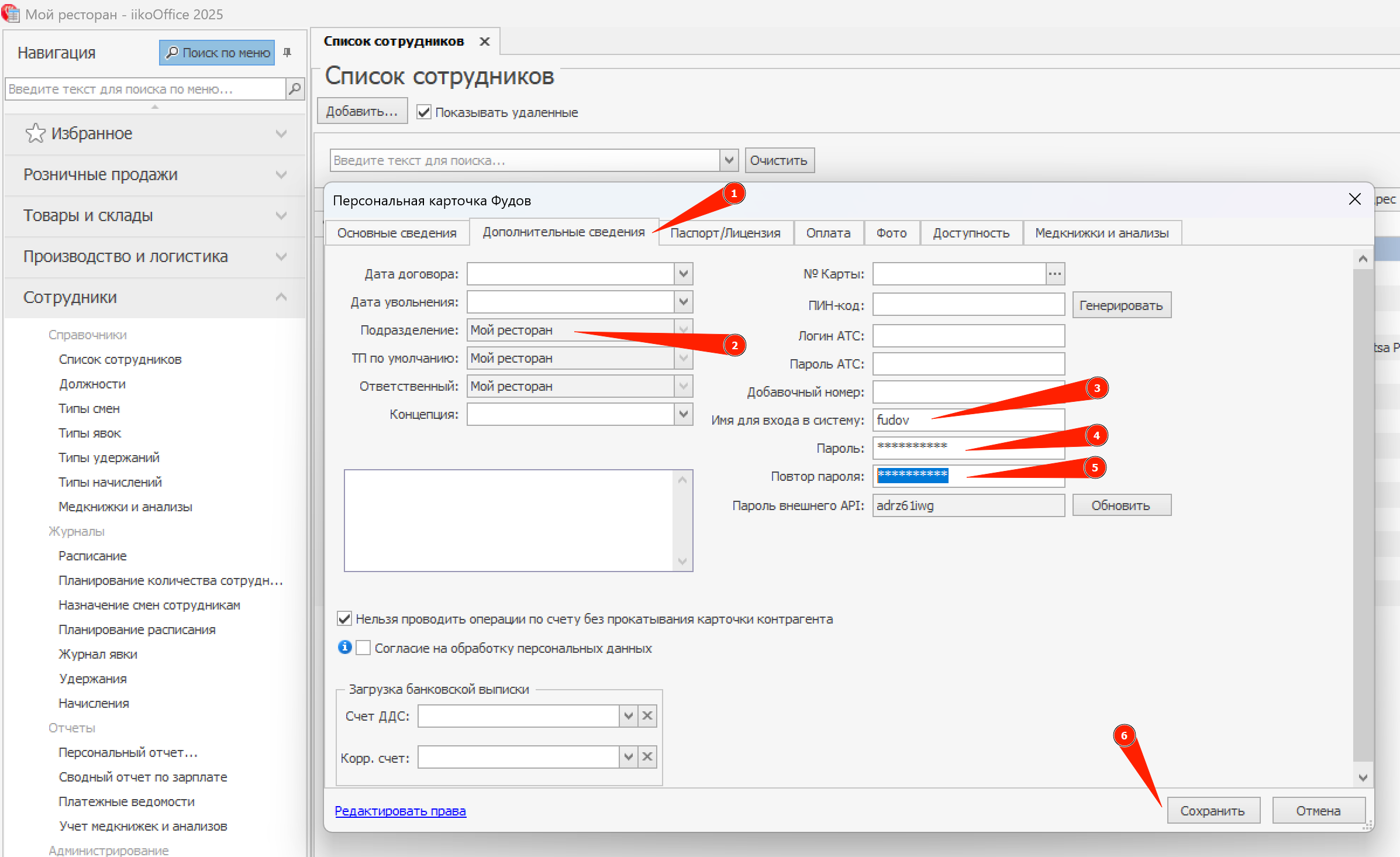
Go to the Additional information tab. In the Department field, enable all locations (departments) that should be visible, set the Login name to
fudov(lowercase), and create a strong password, for example:mTqhy3s41lEnter this password in the Password field and repeat it in Confirm password. Save the changes by clicking Save.
Send the data to Fudov support
After completing Step 2, send the data to Fudov support:
Employee account in the iiko back office for connecting Fudov services:

1. iiko server address: fast-rolls-co.iiko.it
2. System name: fudov
3. Name: Fudov
4. Login name: fudov
5. Password: mTqhy3s41l
Step 3. Create an API login in iikoWeb
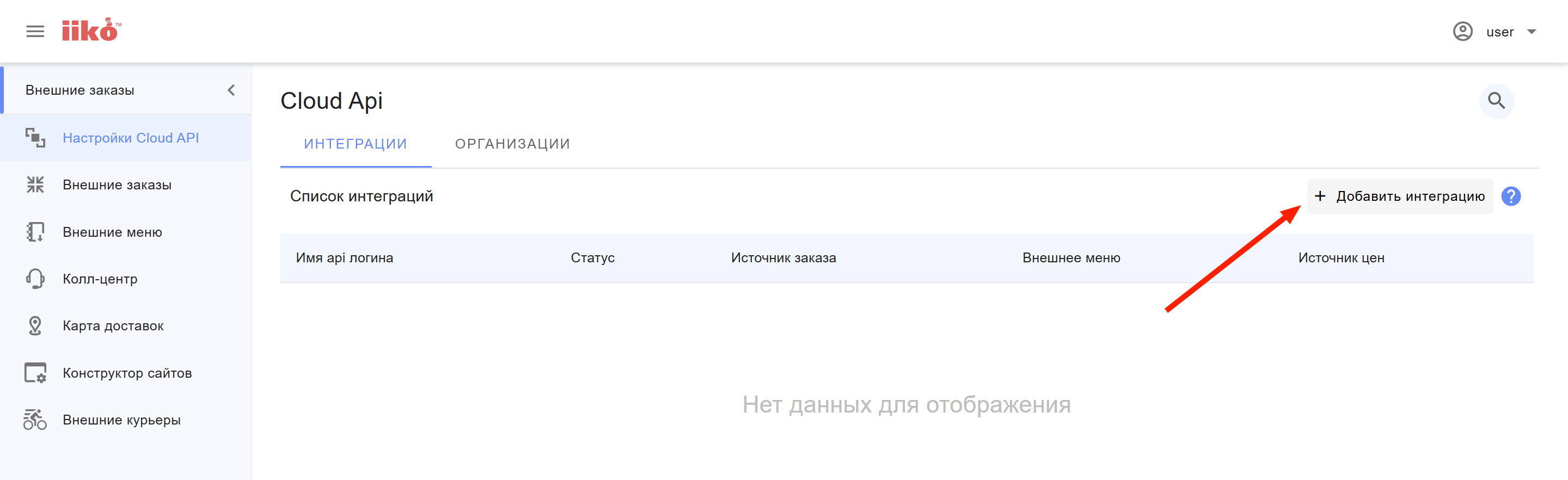
If you work with delivery orders, you also need to create an API login in iikoWeb. Using this login, Fudov services will load delivery orders, stop‑lists, and other data via iikoCloud API / iikoTransport API.
-
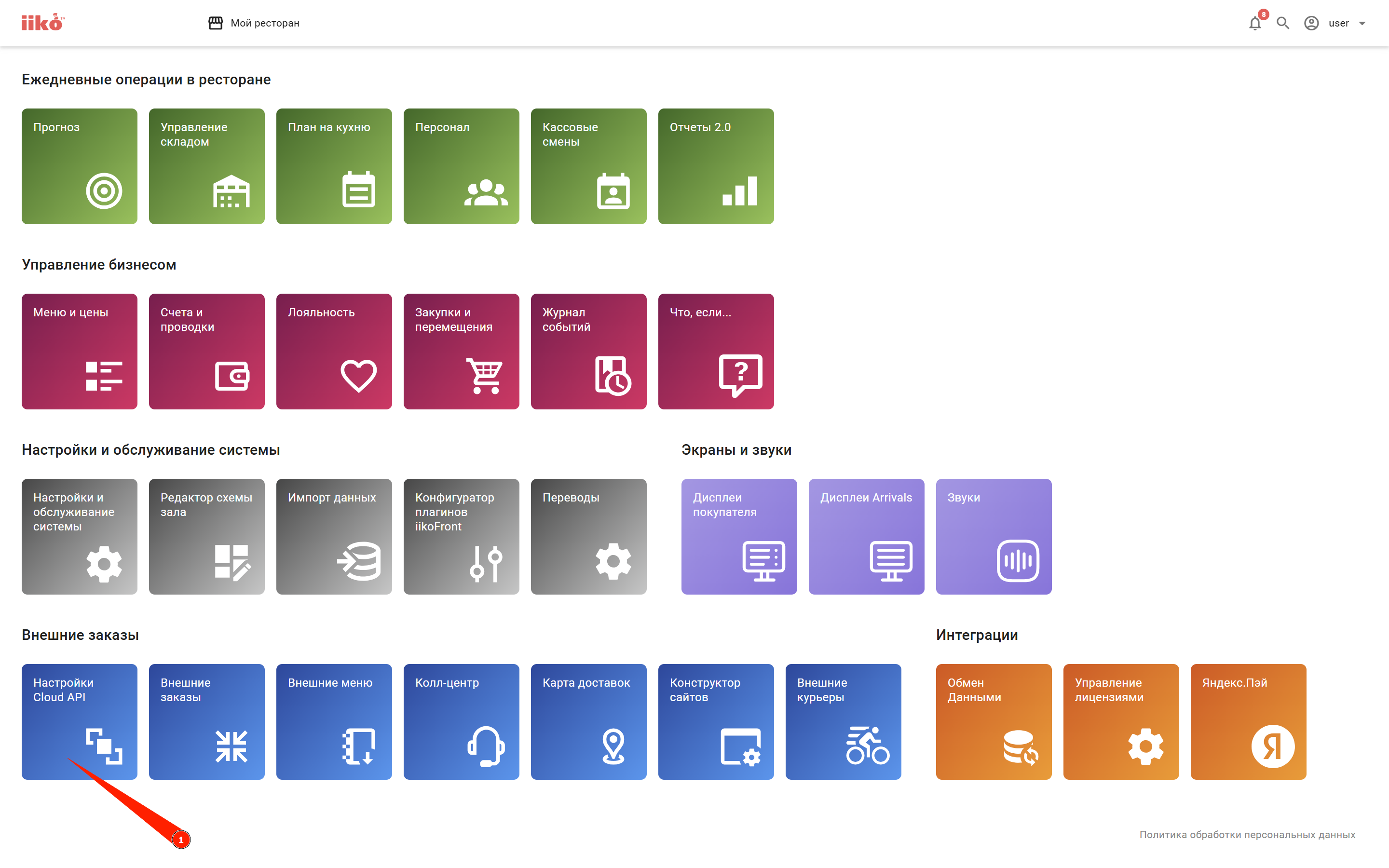
Sign in to iikoWeb.
-
Create a new API login (API key) using the official iiko guide.
-
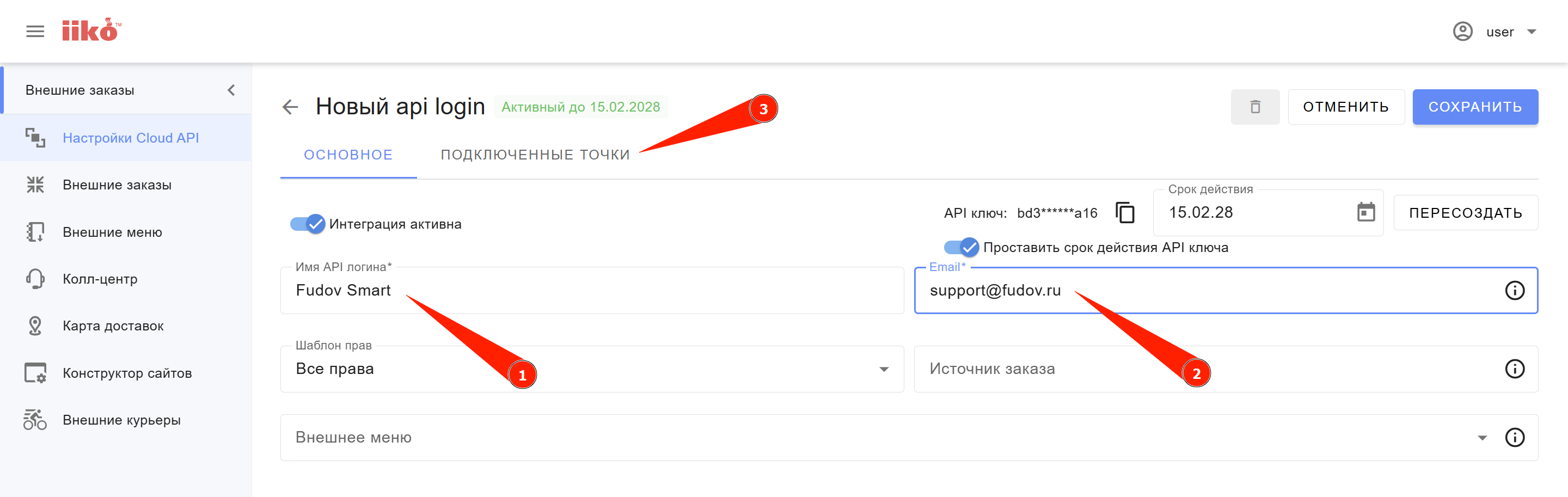
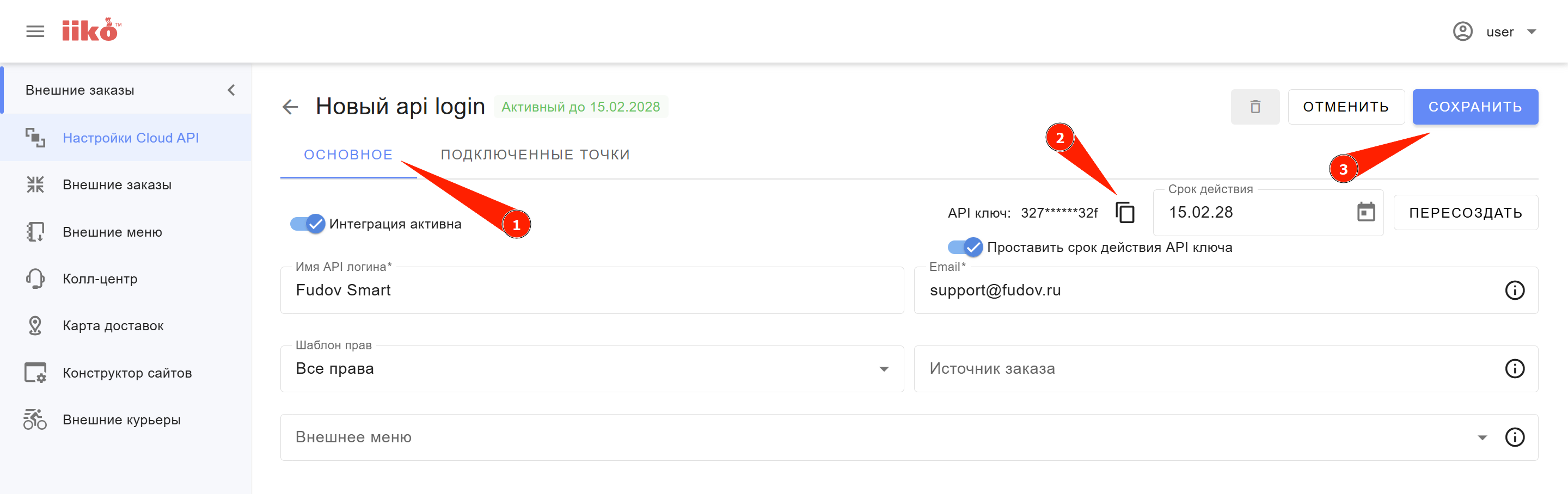
Name the login:
Fudov Smart. - In the Email field, enter:
support@fudov.ru— this email will receive notifications when the key needs to be renewed. - Leave the Order source field empty.
-
Set the maximum key validity period to 2 years (this is the default value).
-
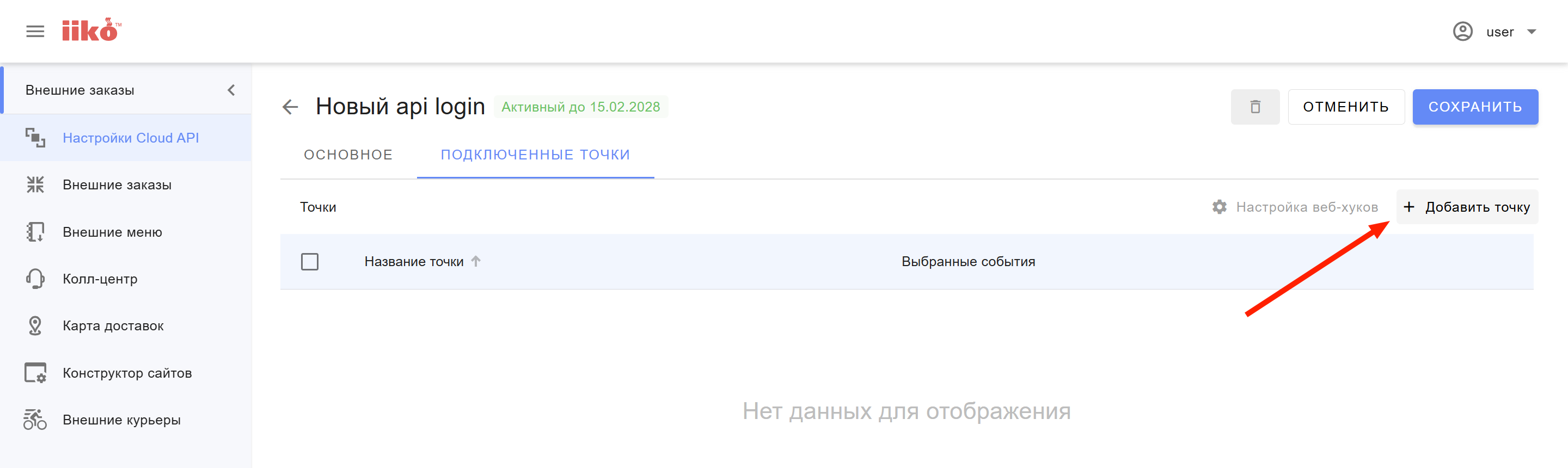
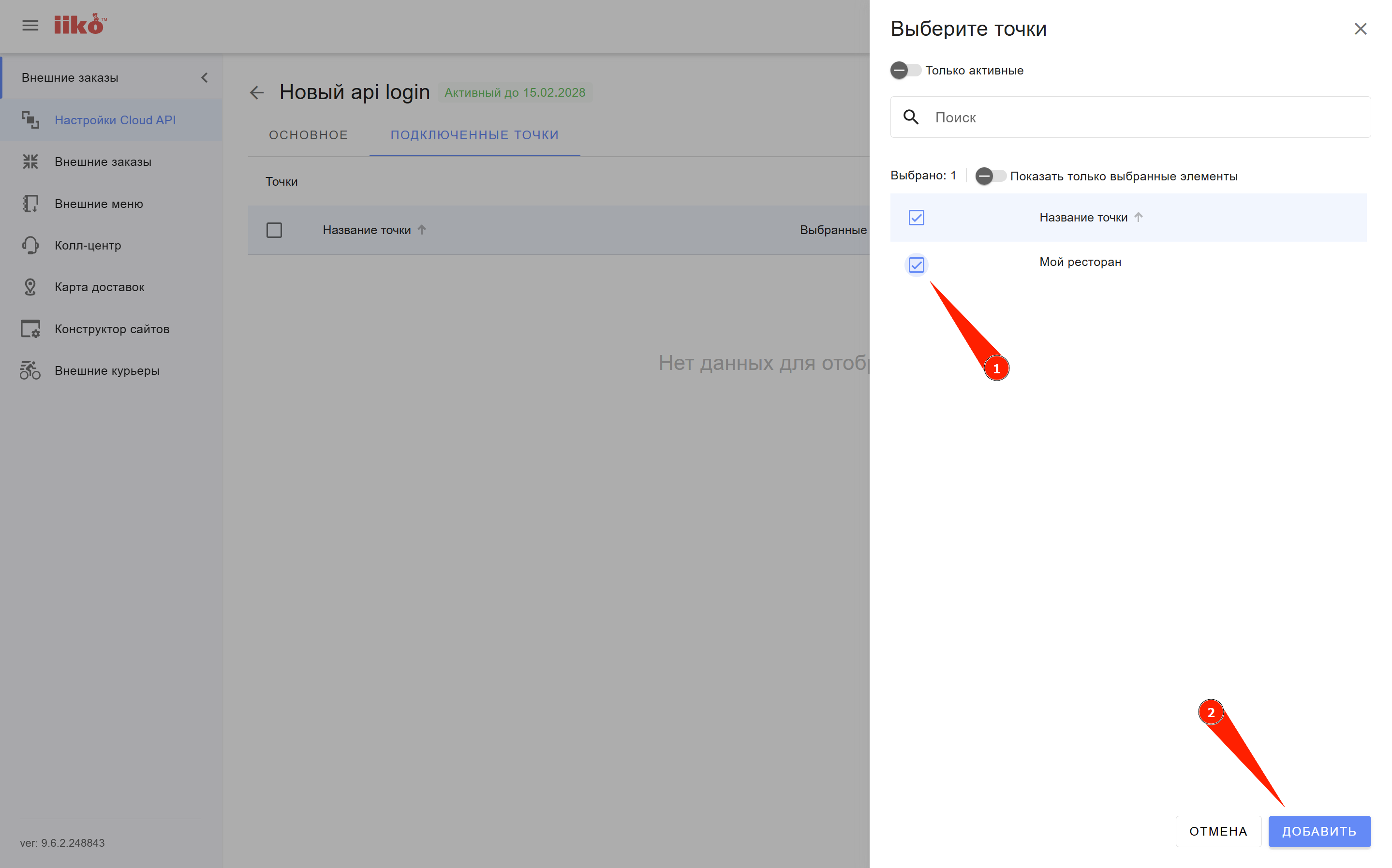
Connect all required locations (departments) for which delivery analytics is needed.
-
After connecting all required locations, copy the API key and save the changes.
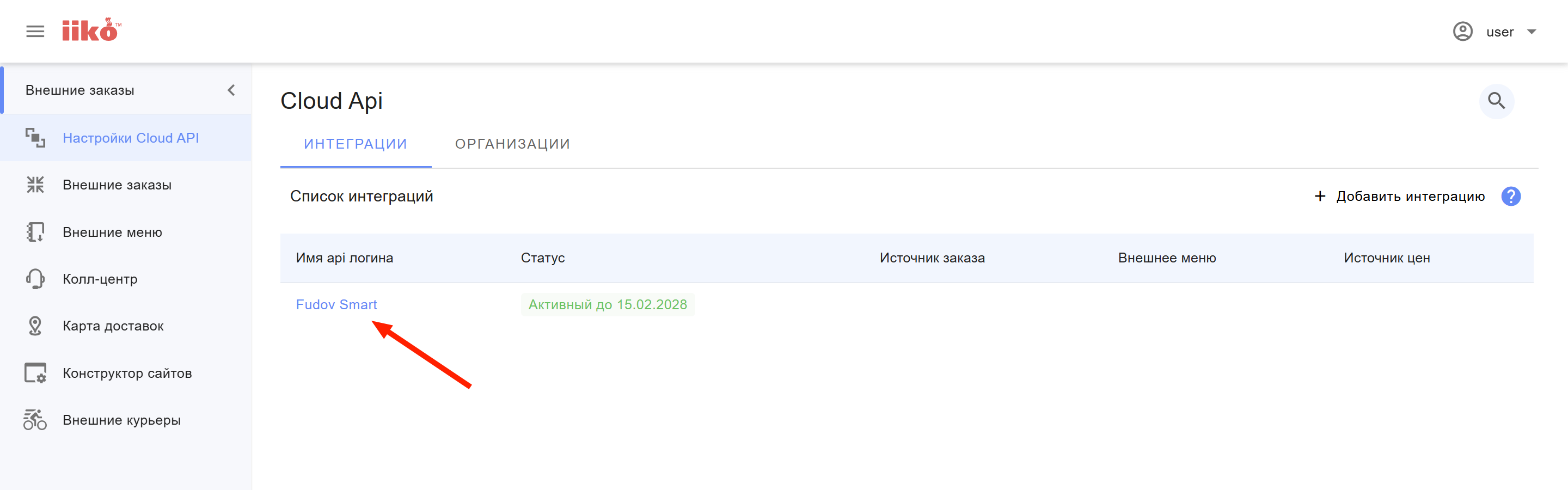
A new API login (API key) should now appear in the integrations list in iikoWeb.
Send the data to Fudov support
After completing Step 3, send the data to Fudov support:
iikoCloud API login for connecting Fudov services:

1. API login name: Fudov Smart
2. API login: 7ea31234a7064891ba5678ca54873b26
Step 4. Send delivery zones in KML format
Send us your delivery zones in KML format.
You can export zones:
- from your website / mobile app admin panel;
- from Yandex Maps (guide);
- from Google Maps;
- from any other mapping service that supports export to KML.
Send the data to Fudov support
After completing Step 4, send the data to Fudov support:
Delivery zones in KML format — see the attached zones.kml file

zones.kml