Frequently Asked Questions
How do I connect a new location (department) to Fudov services?
To add a new location to an existing Fudov account, complete two steps:
1. Add the location in the iiko back office
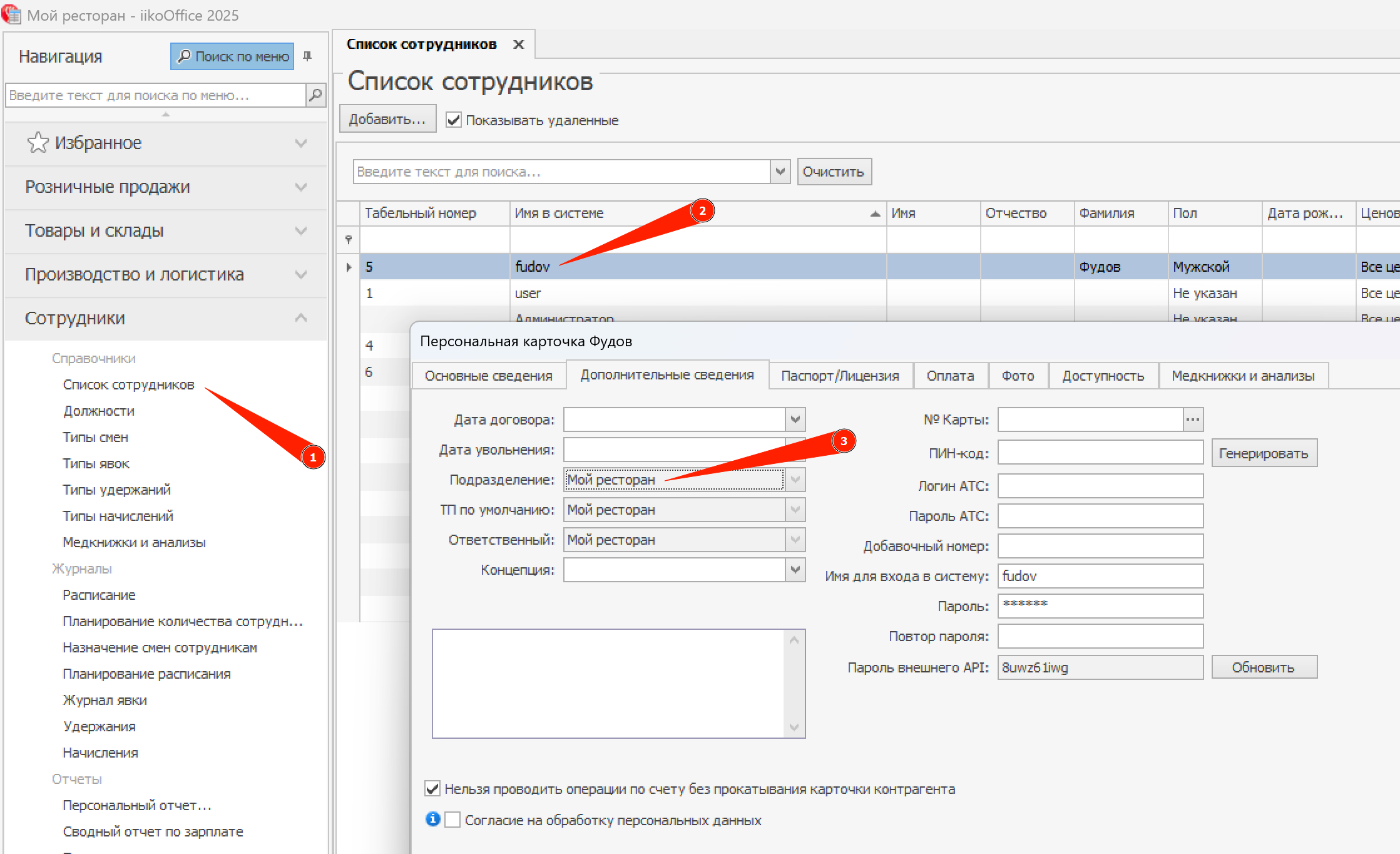
In the iiko back office (iikoOffice), in the left menu open Employees → Employees list, select the fudov employee, double‑click to open the profile, and on the Additional information tab, in the Department field, enable visibility for the new location, then save the changes.
2. Add the location in iikoWeb
- Sign in to iikoWeb.
- Open each API login (API key) that was created when connecting to Fudov services, one by one.
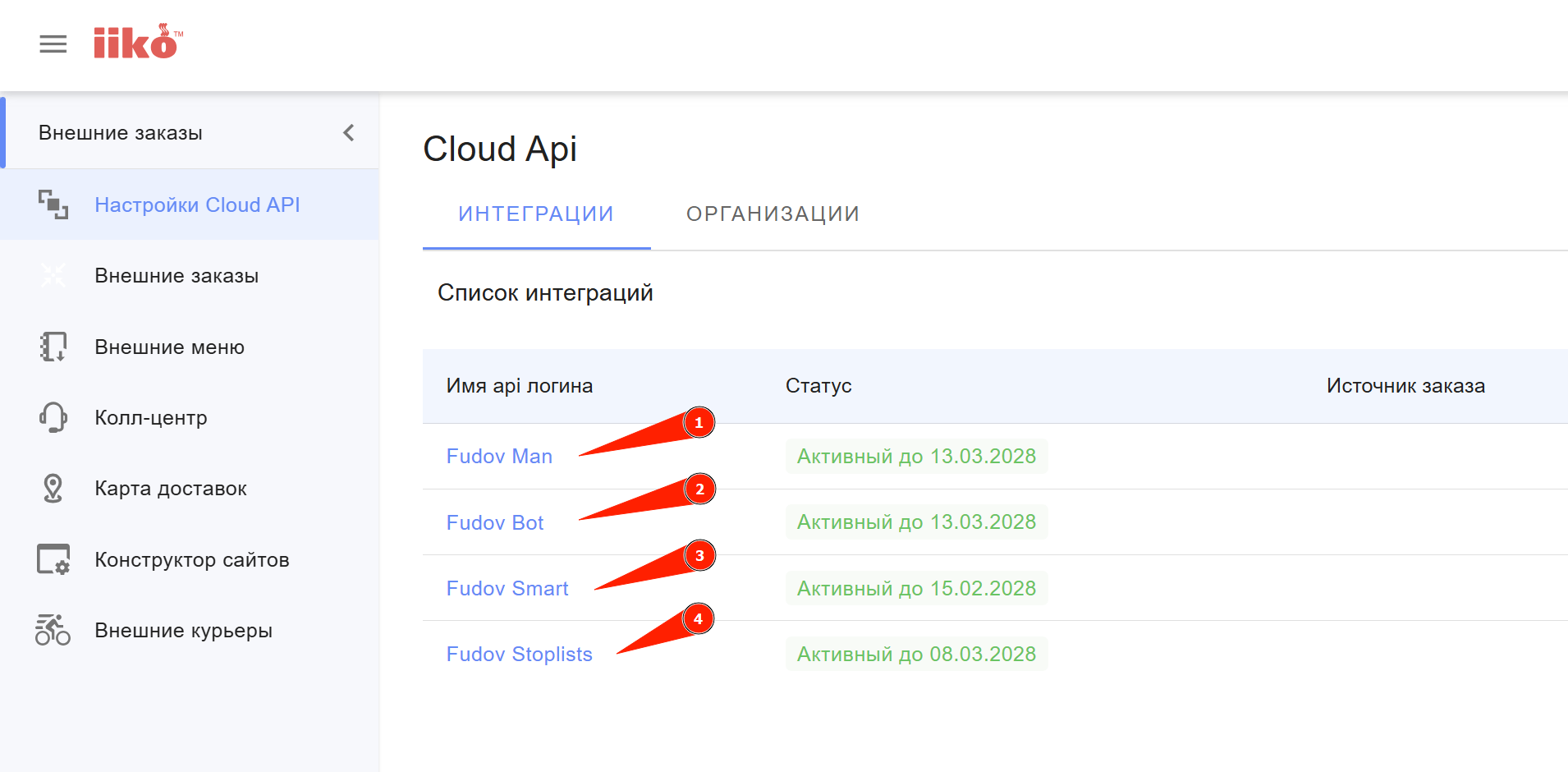
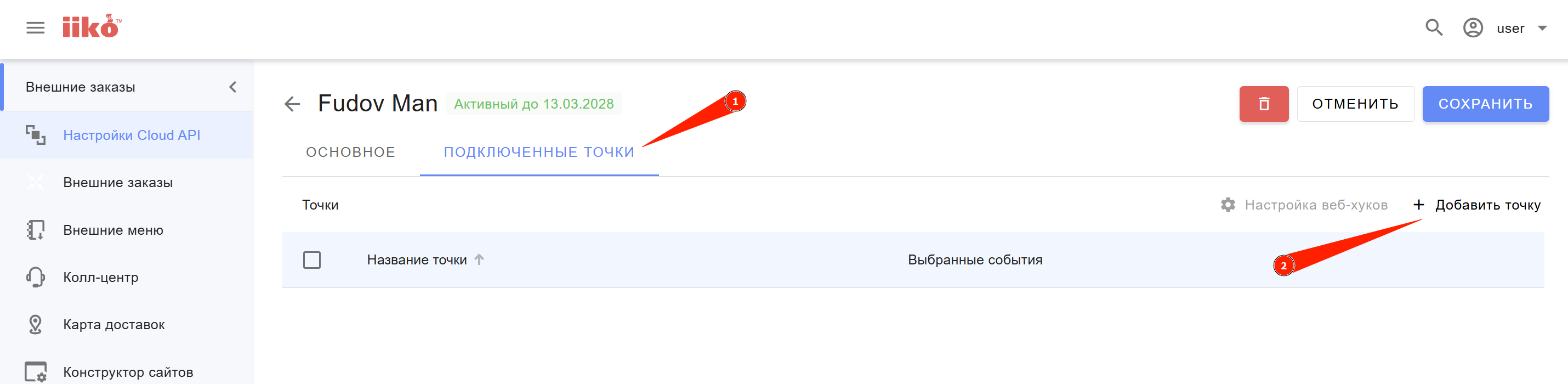
- Go to the Connected locations tab and click Add location.
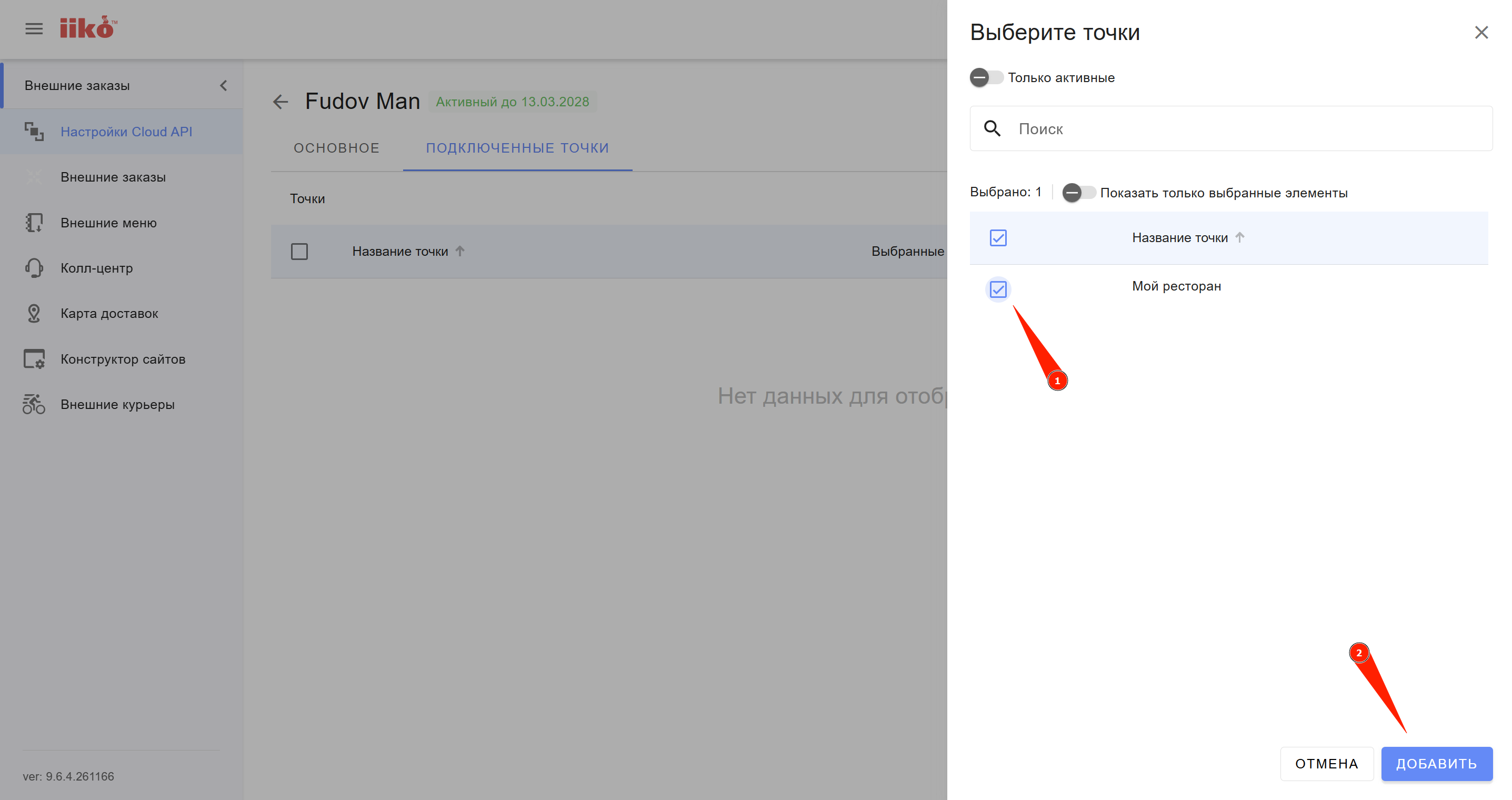
- Select the new location from the list and click Add.
- Save the changes by clicking Save in the upper‑right corner.
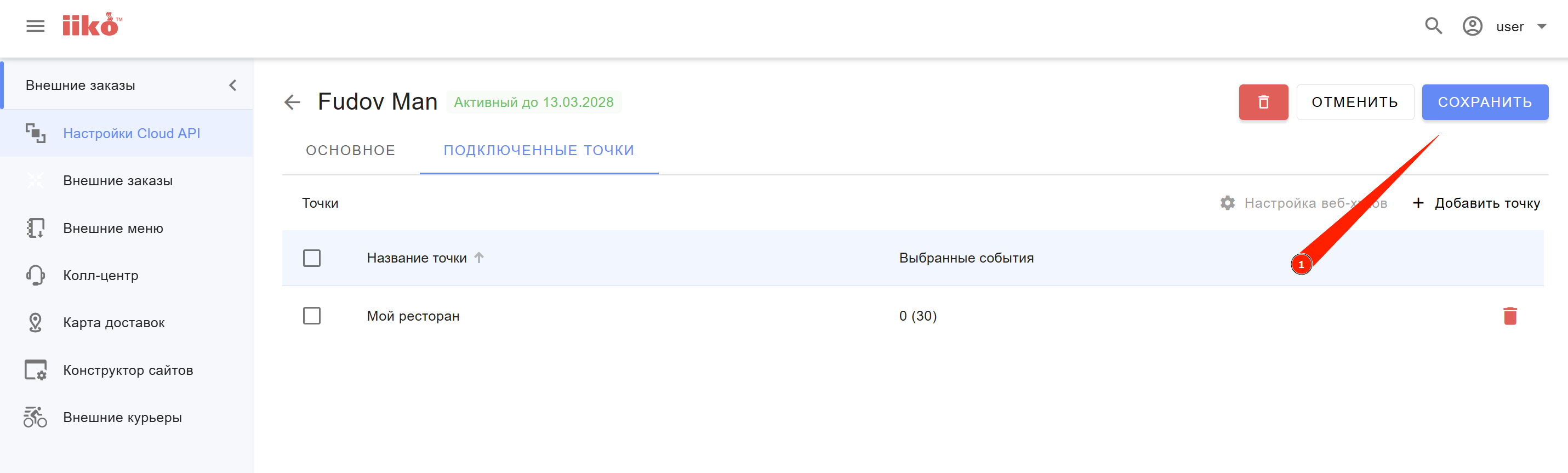
- Make sure you have added the new location to all API keys that were created when connecting to Fudov services.
How do I connect the stop‑list monitoring bot?
To connect the stop‑list monitoring bot, you need to create a separate API login in iikoWeb.
- Sign in to iikoWeb.
- Create a new API login (API key) using the official iiko guide.
- Name the login:
Fudov Stoplists - In the Email field, enter:
support@fudov.ru— this email will receive notifications when the key needs to be renewed. - Leave the Order source field empty.
- Set the maximum key validity period to 2 years (this is the default value).
- Connect all required locations (departments) that should be included in the stop‑list monitoring service.
- After connecting all required locations, copy the API key and save the changes.
A new API login (API key) should appear in the integrations list in iikoWeb.
After creating the new API login, send the data to Fudov support:
iikoCloud API login for connecting the stop‑list monitoring service:

1. API login name: Fudov Stoplists
2. API login: 7ea34321a7064891ba5678ca54873b26